
M2 Web Version: Instant Access & Home Screen Setup
Experience the complete m2 casino ecosystem directly through your mobile browser without occupying local storage. Our high-fidelity web version delivers the exact same speed, security, and game selection as a desktop terminal. Follow the guides below to complete your m2 register process and add a shortcut icon directly to your home screen for rapid access.
iOS Web Version & Home Screen Setup
Access the full m2 casino ecosystem instantly through your mobile browser without using up local storage. Follow this exact 3-step guide to complete your m2 register process, bind your payment details, and save the platform directly to your iPhone or iPad home screen.


1.Create Profile & Verify TAC:
Go to the registration screen to create your new m2 casino account. Enter your phone number under “Mobile No” (e.g., 0123456789), tap “Get TAC”, and type in the incoming SMS verification code. Set a password using at least 6 letters and numbers (do not use special characters).
2.Bind Secure Banking Details:
Type in your full name—this must exactly match your bank account holder name, or future financial transactions will be automatically rejected. Choose your bank, input your bank account number, and click “Submit” to authorize your secure ledger.
3.Save Web App to Home Screen:
While viewing the M2 lobby in your mobile Safari browser, tap the “Share” button (the square icon with an upward arrow at the bottom of your screen). Scroll through the options, tap “Add to Home Screen,” and confirm.
Frictionless Play: An M2 shortcut icon will now appear alongside your standard apps. Tap it any time to execute an instant m2 login, manage your wallet, and dive straight into the game. If you ever prefer a fully standalone application layout, you can always complete a native m2 download directly from your new member menu.
Android Web Icon to Home Screen
Get immediate access to the m2 casino platform directly through your mobile browser. Follow this clean 3-step guide to complete your m2 register process, link your bank details securely, and pin the shortcut icon directly to your Android home screen.
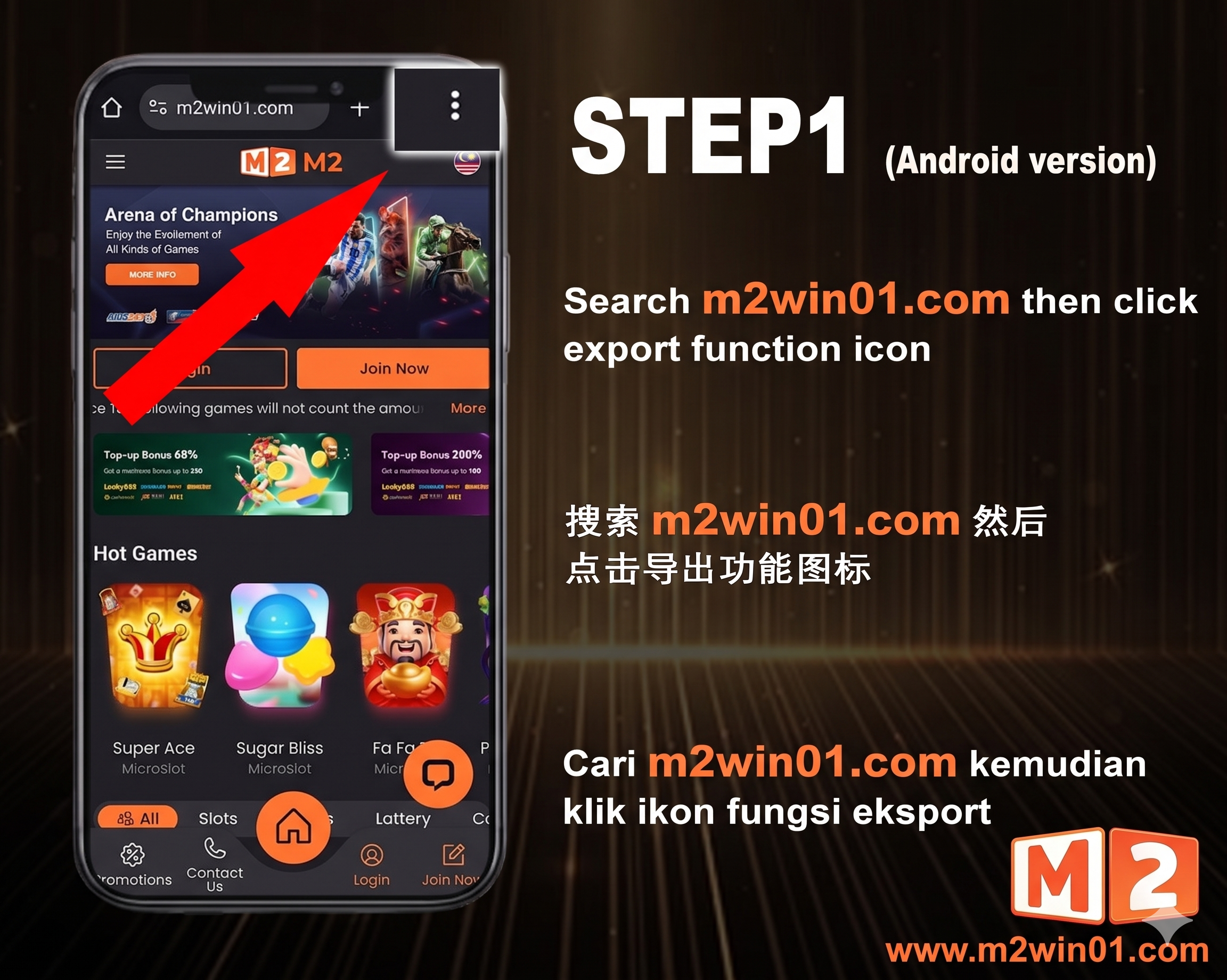

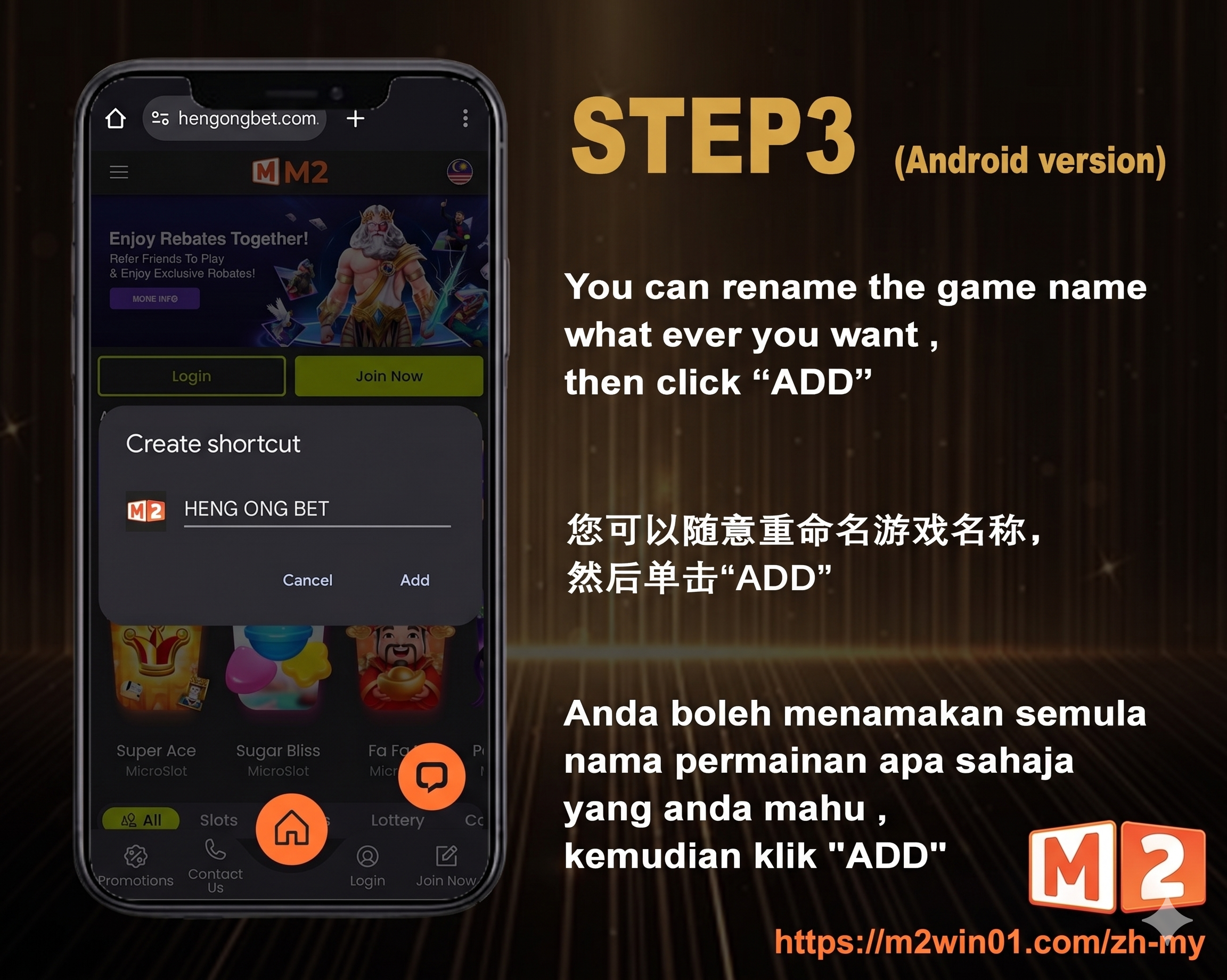
1.Create Profile & Verify TAC:
Navigate to the registration menu to start your m2 casino account. Input your phone number in the “Mobile No” field (e.g., 0123456789), tap “Get TAC”, and enter the received SMS code. Create a password of at least 6 characters using only letters and digits (special characters are not permitted).
2.Link Your Bank Account:
Enter your full legal name—this must exactly match the name on your bank account, or your deposits and withdrawals will be rejected. Select your banking provider, enter your account number, and click “Submit” to activate your wallet.
3.Pin Shortcut to Home Screen:
While on the M2 homepage in Google Chrome, tap the three vertical dots in the top-right corner of the browser window. Select “Add to Home screen” from the menu list and confirm the prompt to place the shortcut icon on your mobile desktop.
Frictionless Play: The M2 icon is now active on your Android home screen. Simply tap it whenever you want to perform a rapid m2 login, bypass browser URL entry, and jump straight into the action. If you prefer a native application interface down the road, you can always choose to do a full m2 download from the secure member sidebar.